3-Way Bollinger Trend [ZynAlgo]
Most band tools only shout "overbought" or "oversold" at the edges and leave you guessing in the middle. 3-Way Bollinger Trend reads the trend, the volatility and the momentum in one price band, then waits for price to pull back to the center line, so you trade continuations with the trend instead of fighting every touch of the band.
Key benefits
- Trend at a glance: a fast center line plus momentum-based coloring (green / red / yellow) tells you the active bias before you look at anything else.
- Pullback signals, not edge-reversals: a two-stage Trigger + Confirmation engine only fires once price closes back on the trend side and holds there, filtering out noisy whipsaws.
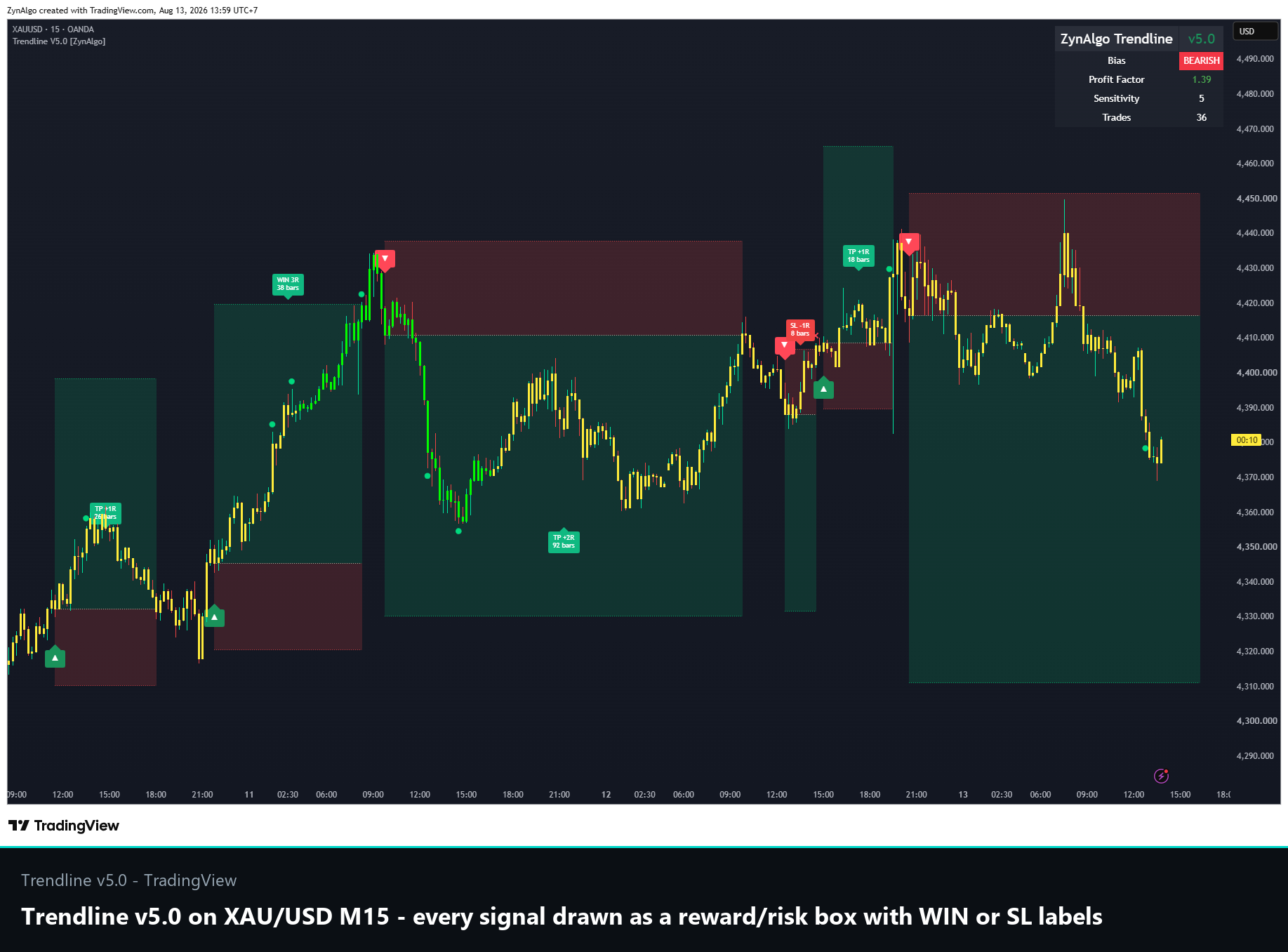
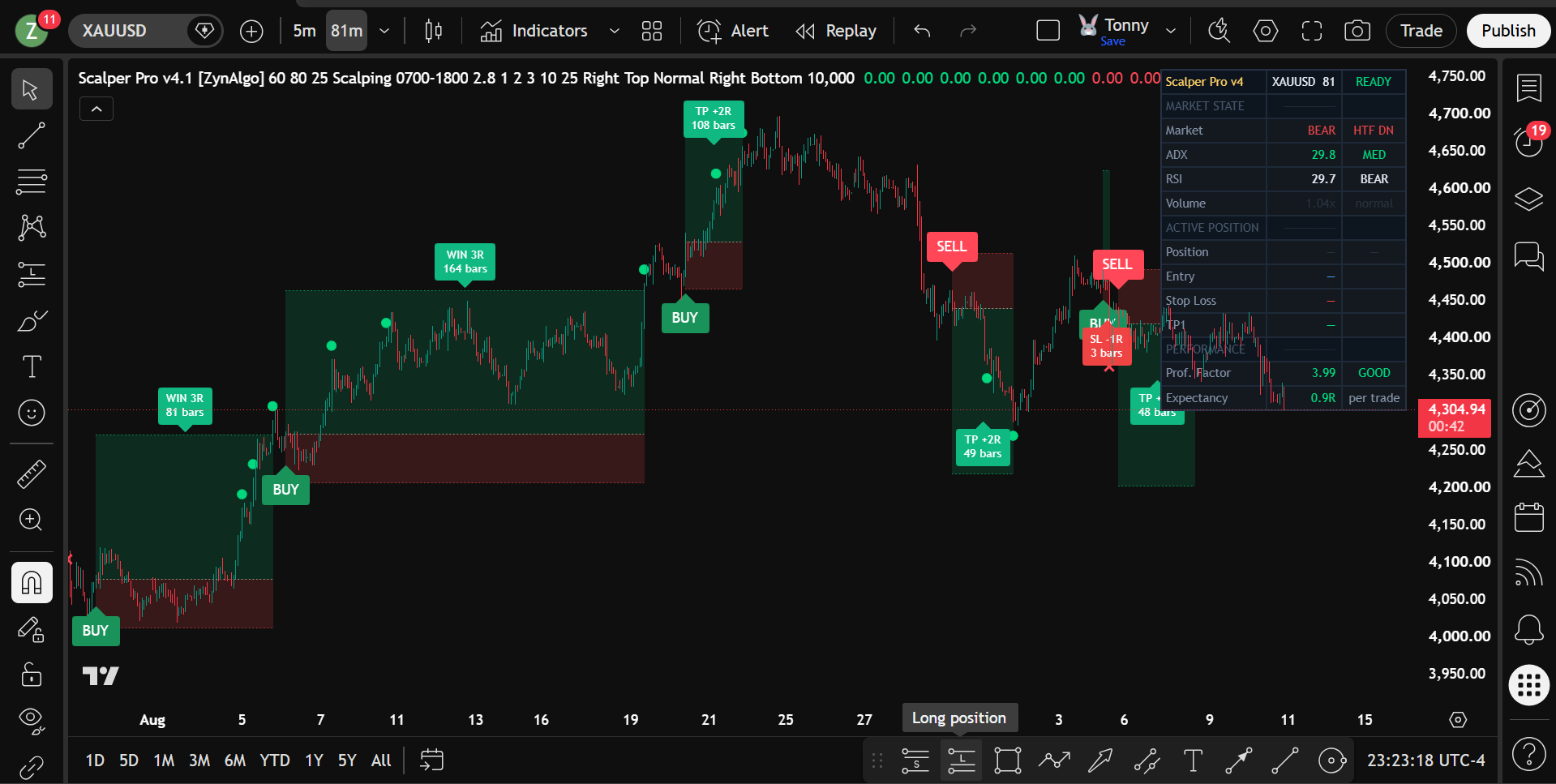
- A full plan when you want one: flip Trade Mode on to add ATR-based stops, 1R/2R/3R targets with breakeven trailing, and a Win Rate / Profit Factor dashboard.
How it works
A responsive center line sits inside a single volatility band that widens and narrows with recent price action, while an RSI reading colors the band Bullish, Bearish or Sideway. A signal needs price to trigger back across the center line and then confirm for a set number of bars, aligned with the last effective trend; entry is the next bar's open with an ATR stop. Full walkthrough is in the Manual.
What's included / Platforms
- TradingView indicator, Pine Script v6, added to your TradingView username once access is granted. Free for ZynAlgo users.
Best for
Trend and pullback traders on any liquid market and timeframe who want a clean one-band read plus continuation entries rather than blind band-edge reversals.
Get started
Browse the ZynAlgo marketplace
Disclaimer: for research and education only, not financial advice. The Win Rate and Profit Factor figures come from an internal, non-executed simulation, not a broker report. Signals are not guarantees and no indicator removes market risk, trade with your own plan and position sizing.
3-Way Bollinger Trend [ZynAlgo]
User Manual
1. Overview
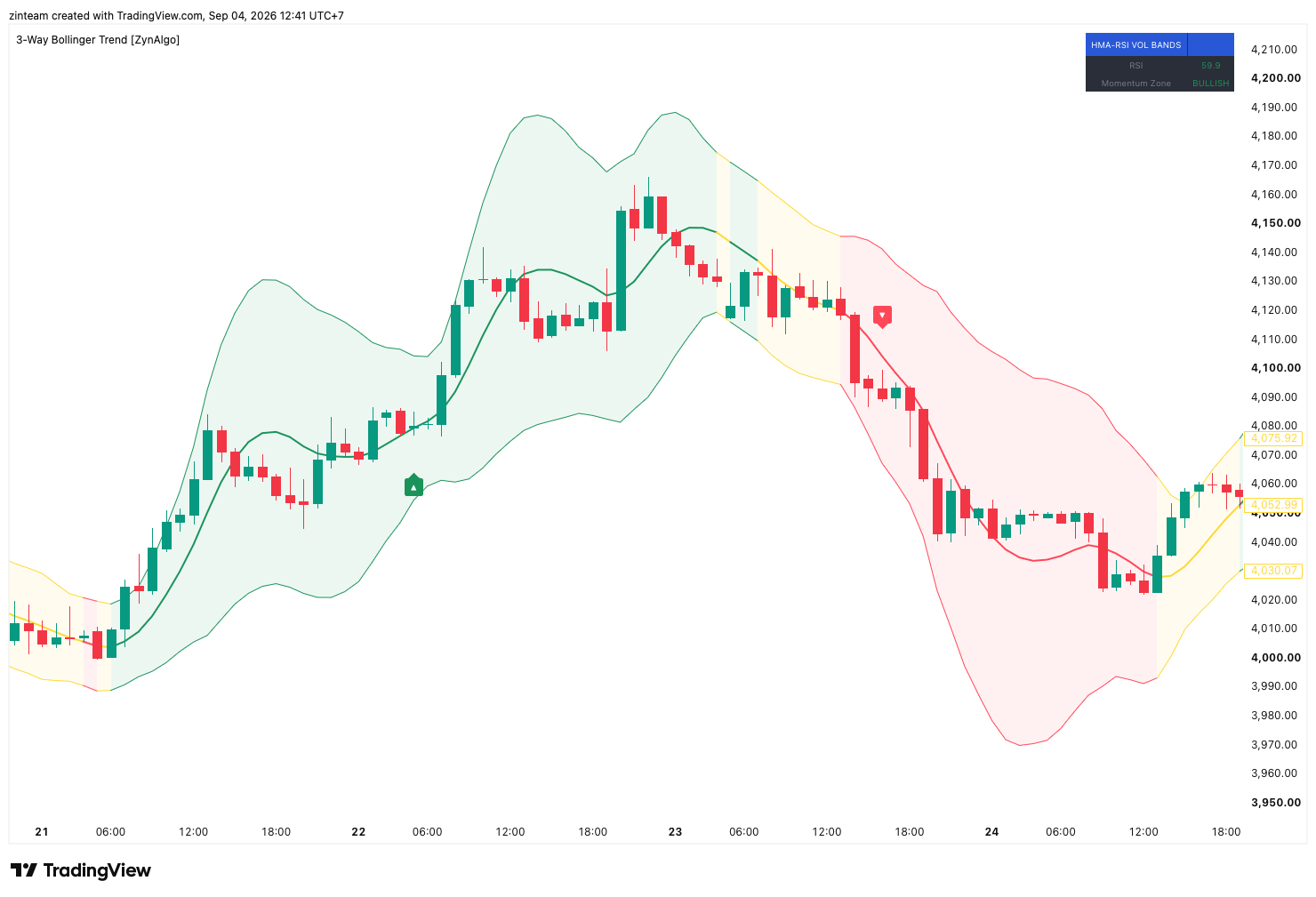
3-Way Bollinger Trend is an indicator that combines 3 layers of analysis into a single price band, rather than relying on a plain moving average:
- Center line, reacts quickly to price movement, with noticeably less lag than a standard moving average.
- Volatility band, built in the spirit of the classic Bollinger Band, automatically widening or narrowing with the market's actual recent volatility.
- Momentum-based coloring, the band and center line change color automatically based on the current momentum state (Bullish / Bearish / Sideway).
Building on this foundation, the indicator generates signals using a "pullback to the center line" logic, not a reversal-at-the-band-edge approach, which is designed to catch pullback continuations within a trend rather than only catching tops and bottoms.
2. The Three Components
2.1. Center Line
- Designed to react quickly to price, with clearly less lag than a same-length standard moving average, while still staying smooth enough to avoid excessive noise.
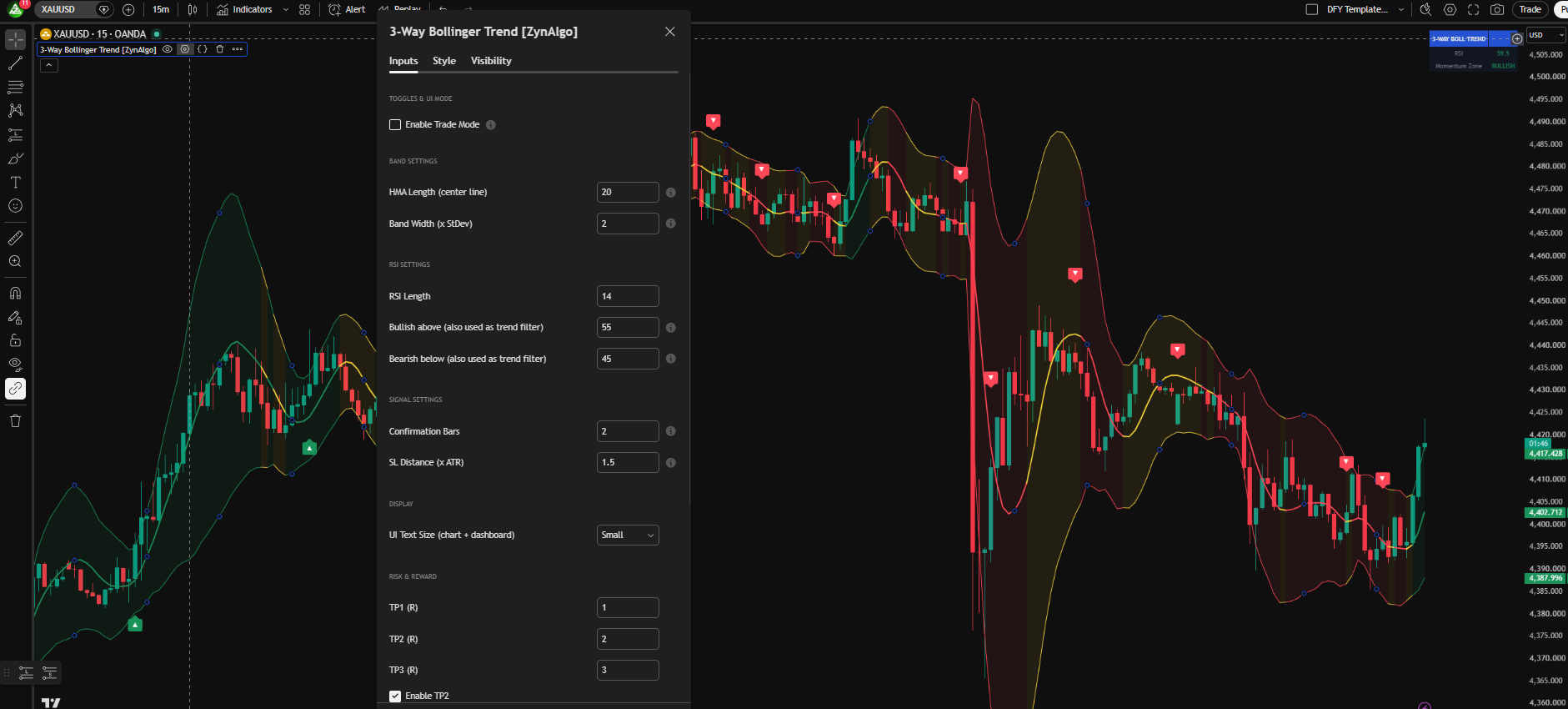
- Adjustable at: Band Settings → HMA Length (default 20).
2.2. Volatility Band
- Built in the spirit of the classic Bollinger Band, the band's width reflects the market's actual recent volatility.
- Only one single band tier (no inner/outer tiers).
- Adjustable at: Band Settings → Band Width (x StDev) (default 2.0).
2.3. Momentum-Based Coloring
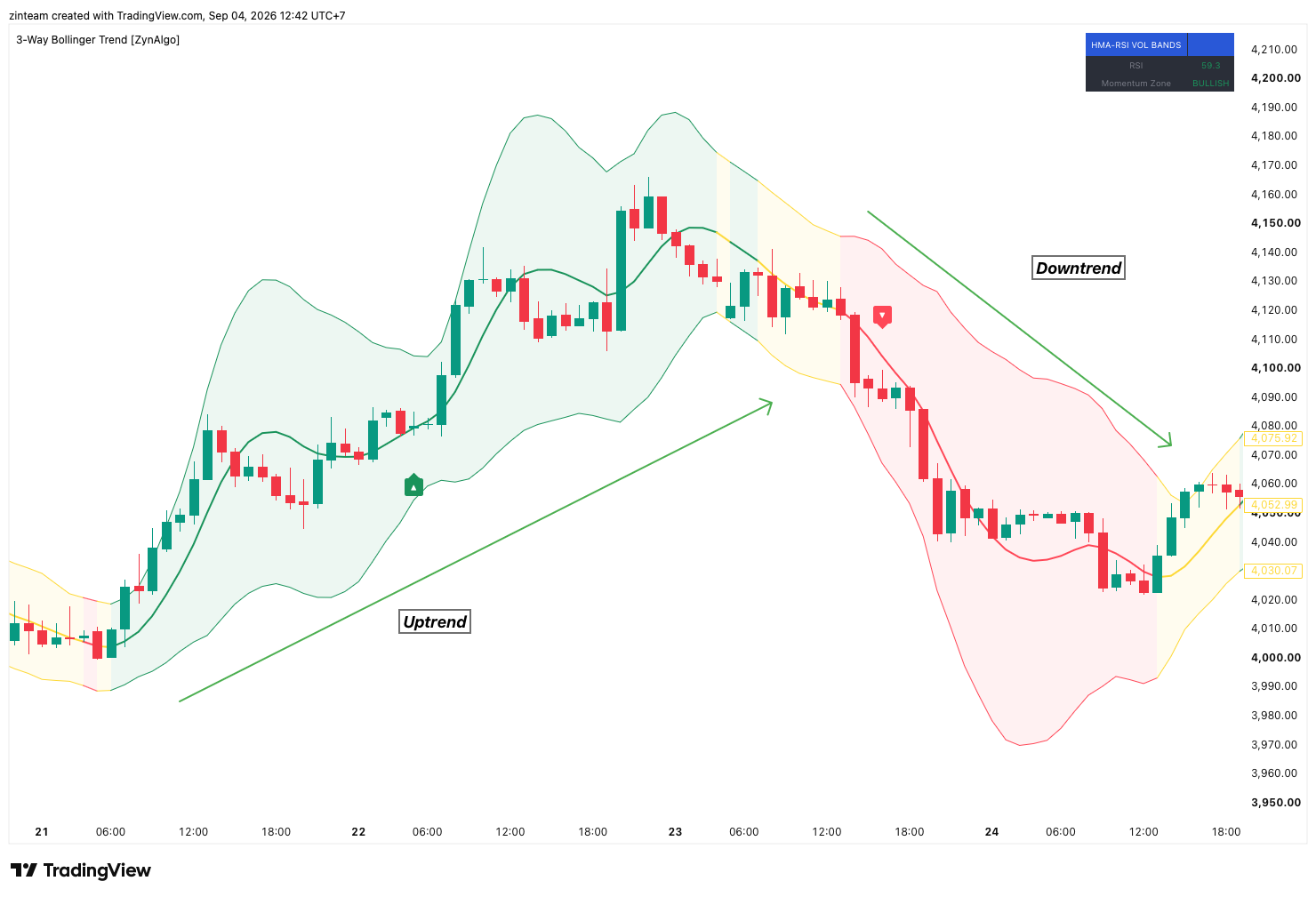
The center line and band both change color based on the market's momentum state:
- Strong upward momentum, Color 🟢 Green · Meaning BULLISH
- Strong downward momentum, Color 🔴 Red · Meaning BEARISH
- In between, direction unclear, Color 🟡 Yellow · Meaning SIDEWAY
Adjustable at: RSI Settings → Bullish above / Bearish below.
Important: These thresholds don't just change the display color, they directly determine which trade direction is allowed (see section 3.3).
(In the middle/neutral zone, RSI sitting between the two thresholds, the band shows yellow. This is the same "Sideway" state described above: the allowed trade direction is then carried over from the last effective trend, see section 3.3.)
3. Reading the Signal
3.1. Pullback Logic, the Core Difference
The indicator does not fire signals on a "price touches the band edge, then reverses" basis (which tends to miss moves since it requires price to travel too far). Instead, the signal is built in two stages:
First, price must close back on the trend side of the center line, this is the Trigger stage. Then, price must continue holding on that side for a number of additional bars (as set in Confirmation Bars), this is the Confirmation stage, without crossing back to the wrong side in between.
Only once both stages are complete does the signal officially fire. If price crosses back at any point during the confirmation stage, the whole setup is cancelled and a fresh Trigger is required.
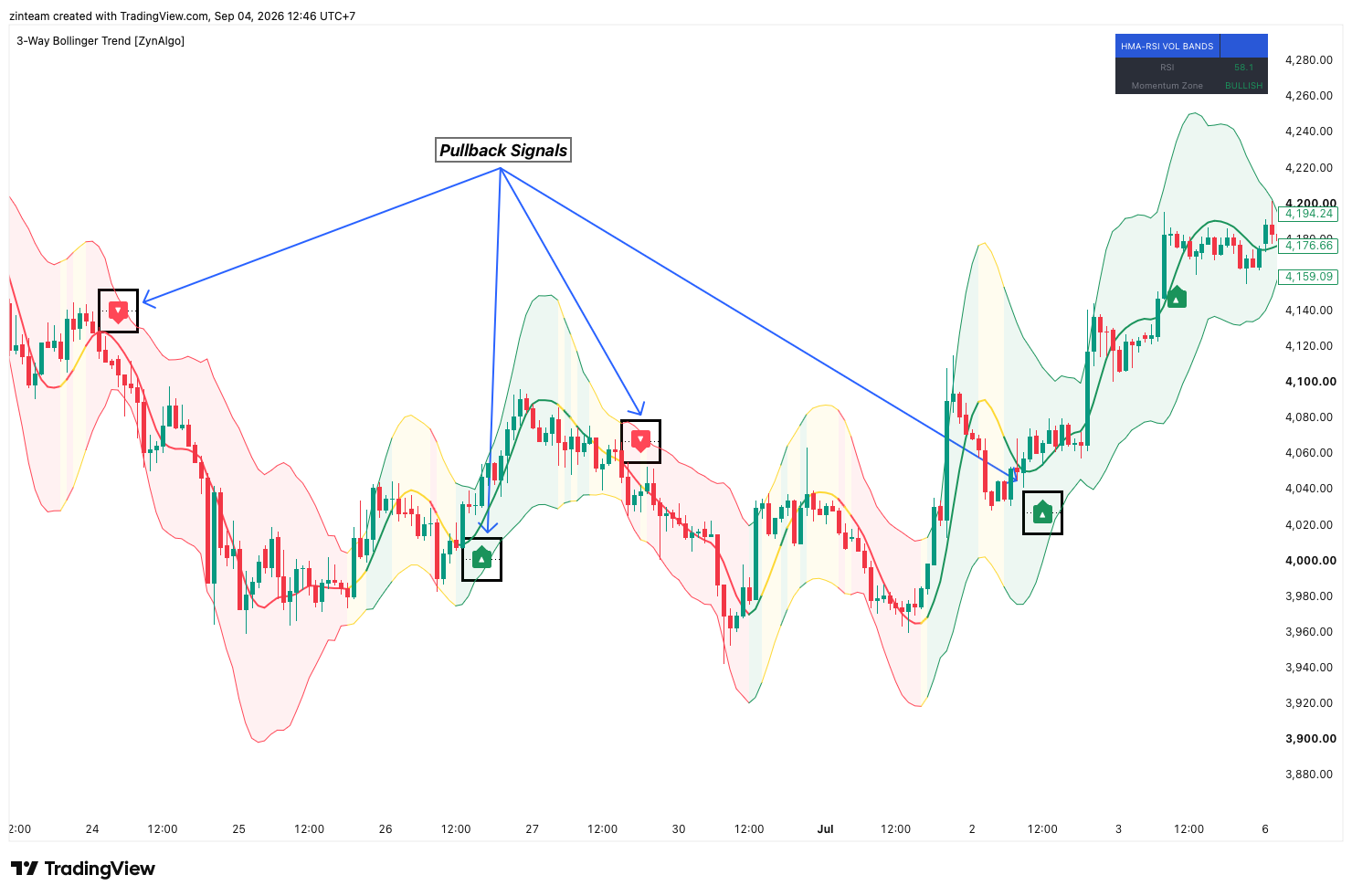
Adjustable at: Signal Settings → Confirmation Bars.
3.2. Why a Confirmation Stage?
Price crossing the center line is a fairly frequent event on its own (not rare like touching the band edge), firing a signal the instant it crosses would leave it exposed to short whipsaws around the center line. The Confirmation stage is the only filter used for this, the indicator deliberately does not require any candle-shape pattern (pin bar, engulfing, etc.).
3.3. Which Direction Is Allowed, Decided by the "Effective Trend"
This is the most commonly misunderstood part of the indicator:
The indicator always remembers the most recent official trend (Up or Down) whenever momentum clearly reads Bullish or Bearish. When momentum falls into the Sideway zone, the indicator does not clear this memory, it keeps using the last recorded trend to decide which direction is allowed, until a new, clearly Bullish or Bearish reading appears.
In other words: Sideway does not mean "both directions are allowed", it means "keep following whichever trend was most recently established."
- Bullish (green), Buy ✅ Allowed · Sell ❌ Blocked
- Bearish (red), Buy ❌ Blocked · Sell ✅ Allowed
- Sideway (yellow), Buy Follows the last effective trend · Sell Follows the last effective trend
3.4. Entry & Stop Loss
- Entry: the open of the bar immediately following the final confirmation bar, never entered on the signal bar itself.
- Stop Loss: placed a distance from entry based on the market's recent average volatility (ATR), calculated at the confirmation bar itself (not the original trigger bar, since price may have moved during the confirmation window). SL is not based on candle wicks, unlike many other indicators.
Adjustable at: Signal Settings → SL Distance (x ATR).
4. Take Profit & R-Multiple Trade Management
Three take-profit levels, expressed as R-multiples (R = the SL distance):
- TP1, Default 1.0R · Can be disabled? Always on
- TP2, Default 2.0R · Can be disabled? Yes (Enable TP2)
- TP3, Default 3.0R · Can be disabled? Yes (Enable TP3)
Automatic Trailing Stop:
- TP1 hit → SL moves to breakeven
- TP2 hit → SL moves up to TP1
This progressively locks in gains and reduces risk on the remaining position once price has moved favorably.
Adjustable at: Risk & Reward (TP1/TP2/TP3, Enable TP2/TP3, Max Trade Duration).
Time-based exit: if a trade stays open too long (default 200 bars) without hitting SL or the final TP, it closes automatically as a "TIMEOUT", counted as neither a win nor a loss.
5. Trade Mode, the Master Switch
This is the master switch that decides which mode the indicator runs in:
Trade Mode = OFF (default)
- The center line and colored band remain fully visible.
- Signal arrows (▲/▼) still fire, each with a hover explanation of the reason.
- Stability Mode and Smart Signal Filter have no effect (bypassed).
- No SL/TP boxes are drawn, no Win Rate/PF tracking.
→ Best for observing and getting familiar with the indicator before live trading.
Trade Mode = ON
- The center line and colored band are hidden.
- Full SL/TP boxes are drawn, with a real-time trailing SL line.
- Stability Mode and Smart Signal Filter actually take effect, filtering out some signals.
- The dashboard additionally shows Trades / Win Rate / Profit Factor.
→ Best for simulating/tracking real trading performance.
6. Execution Filters (only active when Trade Mode is ON)
- Stability Mode, Default On · Function Blocks new signals while a trade is already open
- Smart Signal Filter, Default Off · Function Forces Buy/Sell to alternate
- Cooldown (Bars), Default 5 bars · Function Minimum spacing between two consecutive signals
7. Dashboard
- RSI, Current momentum reading
- Momentum Zone, BULLISH / BEARISH / SIDEWAY (color-coded)
- Trades (shown only when Trade Mode is ON), Total trades recorded
- Win Rate / PF (shown only when Trade Mode is ON), Win rate and Profit Factor
On Win Rate calculation: a trade that closes exactly at breakeven (after the SL has trailed up) counts as 0.5 of a win, not a full win, not a loss. Profit Factor is unaffected by this convention, since a breakeven trade contributes 0 to both the profit and loss totals.
Dashboard position and text size are adjustable under Display / Dashboard.
8. Alerts
The indicator ships with 2 ready-to-use alert conditions in TradingView:
- Reversal Buy, fires when a Buy signal is officially confirmed
- Reversal Sell, fires when a Sell signal is officially confirmed
9. Important Notes
⚠️ This is not an official backtest. All Win Rate / Profit Factor / Trades figures come from an internal simulation, meant as a quick reference, not a substitute for a proper backtest or broker report.
⚠️ No candle-shape requirement. The indicator deliberately does not require a pin bar, engulfing pattern, or any other candle shape, signal reliability comes entirely from the Trigger + Confirmation pairing.
⚠️ All signal logic only processes fully closed bars, never a still-forming bar. This is a deliberate design choice to prevent signals from "repainting" due to constantly changing data on an in-progress bar.
⚠️ Sideway does not mean "fully neutral." As covered in section 3.3, this is the single most common point of confusion, always check the last effective trend before wondering "why is it yellow but only showing Sell/Buy?"
10. Practical Tips
- New to the indicator? Keep Trade Mode off for a while, watch when the arrows appear, and read the hover explanations to understand the reasoning before switching Trade Mode on.
- Market whipsawing a lot around the center line? Raise Confirmation Bars to 3-4 to filter out more false signals.
- Want fewer but higher-conviction signals? Increase Cooldown (Bars) and consider enabling Smart Signal Filter.
- SL too wide or too tight for the instrument's actual volatility? Adjust SL Distance (x ATR), this setting directly drives the entire R-multiple TP structure that follows it.
No release notes have been published yet.