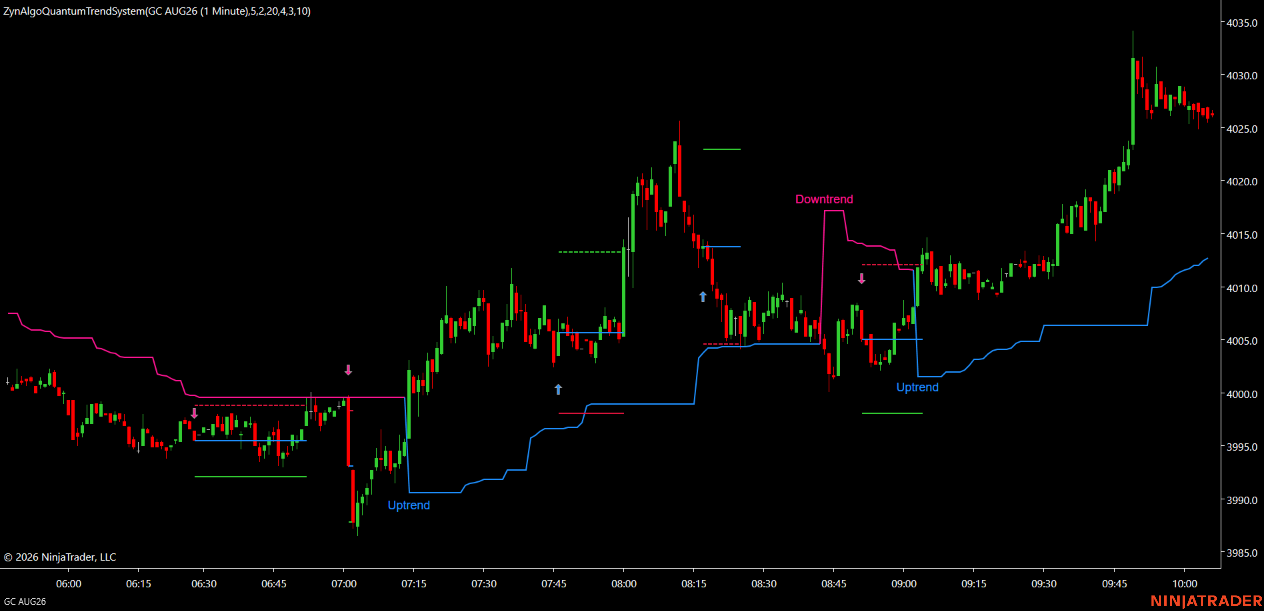
Scalper Pro v4 Strategy
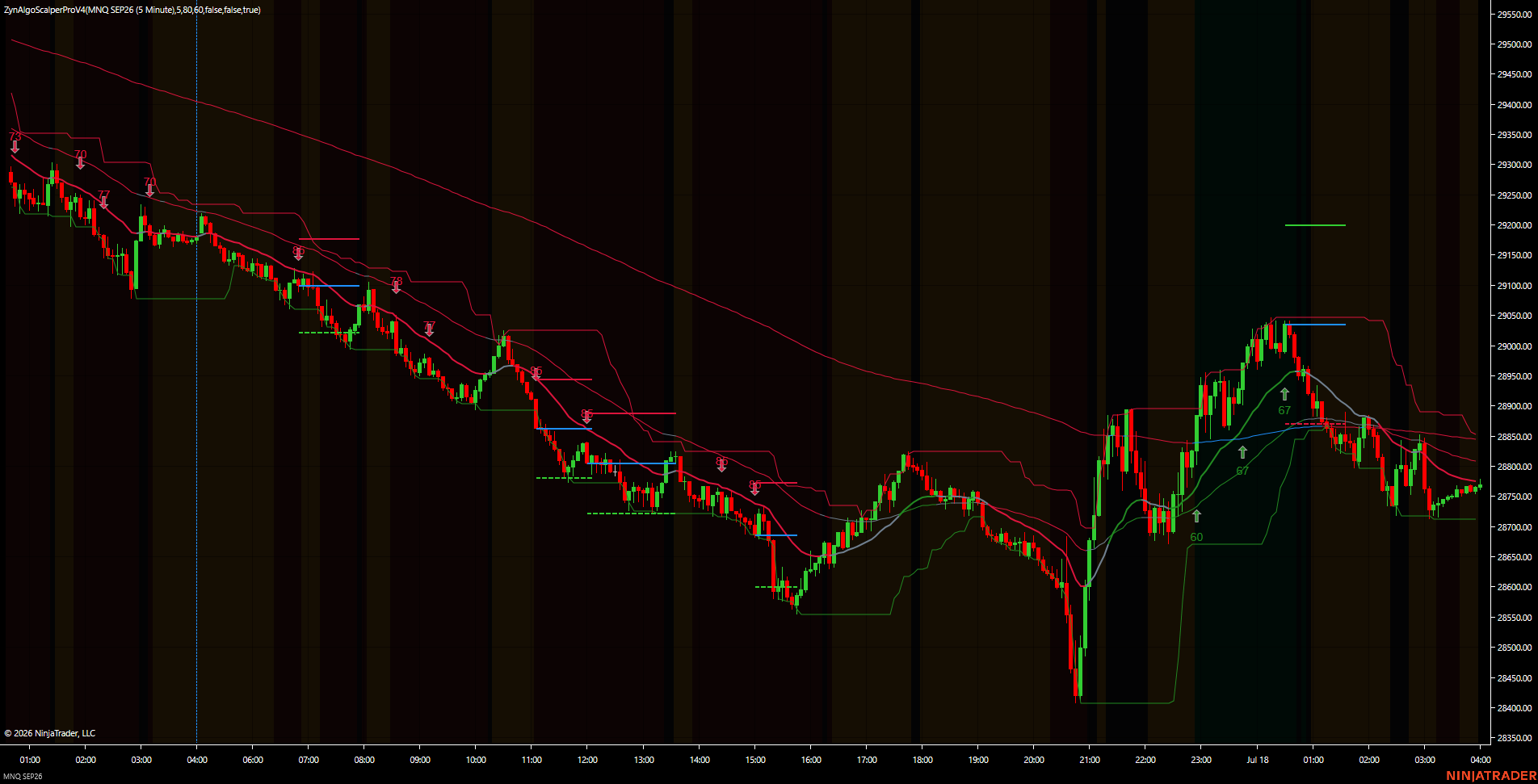
Scalper Pro v4 Strategy is the automated version of the Scalper Pro v4 indicator for NinjaTrader 8. It hosts the indicator itself and trades its output directly - the three entry combos, the weighted 0-100 Signal Score, the structure and sideway gates, the cooldown and the anti-flip filter are the indicator's own, unchanged. With matching inputs, the Strategy trades precisely the scalps the indicator prints on your chart.
Key benefits
- Trades the signals you already trust - the Strategy instantiates the Scalper Pro v4 indicator and reads its signal plots, so there is no second implementation that could drift from what you see.
- Hands-off execution - signals are evaluated once per bar, and a qualified setup is submitted to your account as a bracketed order with its stop and target already attached.
- Only high-conviction scalps - every candidate is graded 0-100 across trend alignment, ADX, RSI, volume and higher-timeframe bias; anything under your Minimum Score never reaches the broker.
- Three ways to set exits - follow the indicator's own SL/TP levels, derive an ATR stop with an R-multiple target, or use a fixed tick distance.
- Built-in equity protection - optional maximum drawdown, daily profit limit and daily loss limit stop the Strategy from trading once your line is crossed.
- Direction control - trade both ways, long only or short only, and choose whether an opposite signal reverses an open position or is ignored.
- Native NinjaTrader licensing - VendorLicense, so there is no access key to paste and no DLL permission to enable.
How it works
The Strategy loads Scalper Pro v4 as a hosted indicator and evaluates it once per bar. The indicator looks for one of three entry combos: a trend-aligned engulfing bar, an RSI divergence at a prior swing on a volume spike, or a range-breakout retest confirmed by Stochastic. Each candidate is scored 0-100 and must clear your Minimum Score, the market-structure and sideway gates, the cooldown and the anti-flip filter. When a signal passes the direction filter and the equity guards, the Strategy attaches a stop and a profit target - taken from the indicator's own levels by default - and submits the entry. Full rules and every input are in the Manual.
What's included
- NinjaTrader 8 automated Strategy, with the Scalper Pro v4 indicator hosted inside it
- The same three entry combos and weighted Signal Score as the indicator
- Three exit modes: indicator levels, ATR stop with R-multiple target, or fixed ticks
- Choice of which indicator target (TP1, TP2 or TP3) to trade
- Direction filter, signal inversion and opposite-signal reversal control
- Equity protection: maximum drawdown, daily profit limit, daily loss limit
- Optional server-time session window
- The indicator's on-chart dashboard, labels and trade levels, toggleable from the Strategy
- Full manual with the complete input reference and installation steps
Best for
Futures, FX and index instruments on M5 to M30 - for traders who want Scalper Pro v4 setups executed automatically inside NinjaTrader with a defined stop, a chosen target and hard risk limits.
Get started
Browse the ZynAlgo marketplace
Trading involves risk; no strategy predicts the market. Scalper Pro v4 Strategy is an automated trading tool, not financial advice, and past performance does not guarantee future results.
Scalper Pro v4 Strategy
What the Strategy actually does
Scalper Pro v4 Strategy is the automated version of the Scalper Pro v4 indicator for NinjaTrader 8. It is not a re-implementation of the rules - the Strategy creates an instance of the Scalper Pro v4 indicator, feeds it your settings, and reads its signal plots. The three entry combos, the weighted 0-100 Signal Score, the market-structure gate, the sideway lock, the cooldown, the Smart Signal Filter and the anti-flip filter are the indicator's own logic, unchanged. With matching inputs, the Strategy opens trades on exactly the signals you would see printed on the chart.
What the Strategy adds on top of the indicator is an execution layer:
- Order submission with a stop and a profit target attached to the entry
- Three ways to derive those exits: the indicator's own levels, an ATR stop with an R-multiple target, or a fixed tick distance
- A direction filter, optional signal inversion, and control over whether an opposite signal reverses the position
- Account-level equity protection: maximum drawdown, daily profit limit, daily loss limit
Everything else - how a signal is defined, when it is allowed and when it is suppressed - works exactly as described in the Scalper Pro v4 indicator manual.
How a signal becomes a trade
The Strategy runs on Calculate.OnEachTick but only evaluates signals on the first tick of each bar, so entries are taken from confirmed bars and do not repaint intrabar. It needs 220 bars of history before it will trade. On each new bar:
- Read the indicator's buy and sell signal plots for the closed bar.
- If Reverse Signal Logic is on, swap them.
- Apply the direction filter (Both / Long Only / Short Only).
- Check the equity guards; if any limit is breached, the entry is skipped.
- Work out the stop price, and the target price if a profit target is enabled.
- If an opposite position is open, close it first when Reverse On Opposite Signal is on; otherwise skip the signal.
- Submit the entry for the fixed quantity, with the stop and target attached.
The Strategy holds at most one position at a time - EntriesPerDirection is 1 and a same-direction signal while already in that direction is ignored. On start it waits until the account is flat before taking its first trade.
The three entry combos (shared with the indicator)
A bar qualifies if any one of these fires:
- Combo 1 - trend continuation. The EMA set is stacked in trend order, RSI(14) sits in the healthy band, and the bar is an engulfing bar that closes beyond the previous bar's extreme.
- Combo 2 - reversal at a level. Price is at the last confirmed swing low (demand) or swing high (supply), RSI is diverging against price, and volume spikes above its 20-bar average.
- Combo 3 - breakout retest. Price broke the 20-bar range and came back to retest that level, confirmed by Stochastic %K on the right side of 50 and turning.
Every candidate is graded 0-100 across trend alignment, ADX, RSI position, volume, higher-timeframe bias and the combo's own confirmation. Only the best-scoring combo on the bar is used; it must reach Minimum Score to trade, and at or above the HIGH QUALITY Threshold it is tagged on the chart.
Inputs
1. Signal Engine
- Minimum Score (default
60): Minimum Signal Score (0-100) a setup must reach before the Strategy will trade it. Raise it for fewer, higher-conviction entries. - HIGH QUALITY Threshold (default
80): Score at or above which a signal is tagged HIGH QUALITY on the chart. Display only - it does not gate trading. - Signal Cooldown Bars (default
5): Bars that must pass before another signal in the same direction is allowed. - Stability Mode (default
false): Blocks a new entry while a trade is still open. Off by default here, because Reverse On Opposite Signal already handles the flip case. - Smart Signal Filter (default
false): Forces signals to alternate direction, so a BUY cannot follow a BUY. - Anti Flip Score Filter (default
true): Shortly after a signal, a reversal must outscore it by a clear margin to be accepted. - Use Session Filter (default
false): Enables the trading window. When off, signals are allowed at any hour. - Session Start HHmm (default
700): Window start, as an integer in HHmm form (700 = 07:00). - Session End HHmm (default
1800): Window end, as an integer in HHmm form (1800 = 18:00).
2. Indicator Display
- Show Indicator On Chart (default
true): Draw the hosted Scalper Pro v4 indicator on the chart. - Show Indicator Trade Levels (default
true): Draw its entry, stop and target lines. - Show Indicator Dashboard (default
true): Draw its dashboard panel. - Show Indicator Labels (default
true): Draw its BUY/SELL signal labels. - Show Indicator Background (default
true): Draw its background shading.
These are cosmetic - they do not affect trading.
3. Trading
- Fixed Quantity (default
1): Contracts or shares per entry. Position size is fixed; there is no percent-of-equity sizing in the NinjaTrader build. - Trade Direction (default
Both): Restrict to Long Only or Short Only, or trade Both. - Reverse Signal Logic (default
false): Inverts every signal - a BUY becomes a SELL and vice versa. - Reverse On Opposite Signal (default
true): When an opposite signal arrives while in a position, close it and enter the other way. Turn off to ignore opposite signals until the current trade closes on its own stop or target.
4. Exits
- Exit Mode (default
Indicator Levels): Where the stop and target come from. Indicator Levels uses the indicator's own SL/TP plots. Strategy ATR builds an ATR stop and an R-multiple target. Fixed Ticks uses a fixed distance. - Target To Trade (default
1): In Indicator Levels mode, which of the indicator's targets to use as the profit target: 1, 2 or 3. - Use Profit Target (default
true): Attach a profit target. Off means the trade exits on the stop only. - Target R:R (default
1.0): In Strategy ATR mode, the target as a multiple of the stop distance. - SL ATR Period (default
14): ATR period for the Strategy ATR stop. - SL ATR Multiplier (default
2.8): Stop distance as a multiple of that ATR. - Fixed SL Ticks (default
50): Stop distance in ticks, in Fixed Ticks mode. - Fixed Target Ticks (default
50): Target distance in ticks, in Fixed Ticks mode.
Each entry carries one stop and one target. Unlike the MetaTrader build, the NinjaTrader Strategy does not split the position into a separate ticket per target - use Target To Trade to pick which of the indicator's three targets the trade aims for.
If Indicator Levels is selected but the indicator has not produced a usable level on that bar, the Strategy falls back to the ATR calculation rather than trading without a stop.
5. Indicator TP/SL
These are passed straight through to the hosted indicator, so its plotted levels match what the Strategy trades.
- Indicator ATR Multiplier (default
2.8): The indicator's stop distance as an ATR multiple. - Indicator Enable TP1 (default
true): Enable the indicator's first target. - Indicator R:R TP1 (default
1.0): TP1 reward-to-risk multiple. - Indicator Enable TP2 (default
false): Enable the second target. - Indicator R:R TP2 (default
4.5): TP2 reward-to-risk multiple. - Indicator Enable TP3 (default
false): Enable the third target. - Indicator R:R TP3 (default
6.5): TP3 reward-to-risk multiple.
If you set Target To Trade to 2 or 3, enable the matching target here - otherwise the indicator will not publish that level and the Strategy will fall back to ATR.
6. Risk Protection
- Enable Equity Protection (default
false): Master switch for the three account guards below. - Max Drawdown % (default
10.0): Stop taking new entries once account cash value has fallen this far from where the Strategy started. - Daily Profit Limit (default
0.0): Stop taking new entries once the day's profit reaches this amount. 0 disables it. - Daily Loss Limit (default
0.0): Stop taking new entries once the day's loss reaches this amount. 0 disables it.
The guards block new entries only; a position already open keeps its stop and target and closes normally. The daily baseline resets on each new calendar day.
Installing and running it
- In NinjaTrader, open Tools > Import > NinjaScript Add-On and select the ZynAlgo package.
- Both the Scalper Pro v4 indicator and this Strategy are installed. The Strategy hosts the indicator itself, so you do not need to add the indicator to the chart separately.
- Open a chart on the instrument and timeframe you want to trade (M5-M30 suits the defaults).
- Go to Strategies in the Control Center or the chart's Strategies dialog, add ZynAlgoScalperProV4Strategy, and set your inputs.
- Set Fixed Quantity, pick the Exit Mode, and decide whether to enable equity protection.
- Enable the Strategy and switch on the account's Enabled toggle so orders can be submitted.
Allow 220 bars of history to load before expecting the first signal. The Strategy prints its startup bar, every signal it sees and every order it submits to the NinjaScript Output window - useful for confirming it is live and for checking why a signal was filtered.
License
Scalper Pro v4 Strategy uses NinjaTrader's own vendor licensing (VendorLicense) tied to your machine's NinjaTrader ID. There is no access key to paste and no DLL permission to enable - once your ID is authorised on the ZynAlgo licence, the Strategy runs. If your ID is not authorised, NinjaTrader itself blocks the Strategy from loading.
Browse the ZynAlgo marketplace
Trading involves risk. Scalper Pro v4 Strategy is an automated trading tool, not financial advice, and past behaviour does not predict future results. Always test on a simulation account first.
- Scalper Pro v1Jul 21, 2026
Initial release
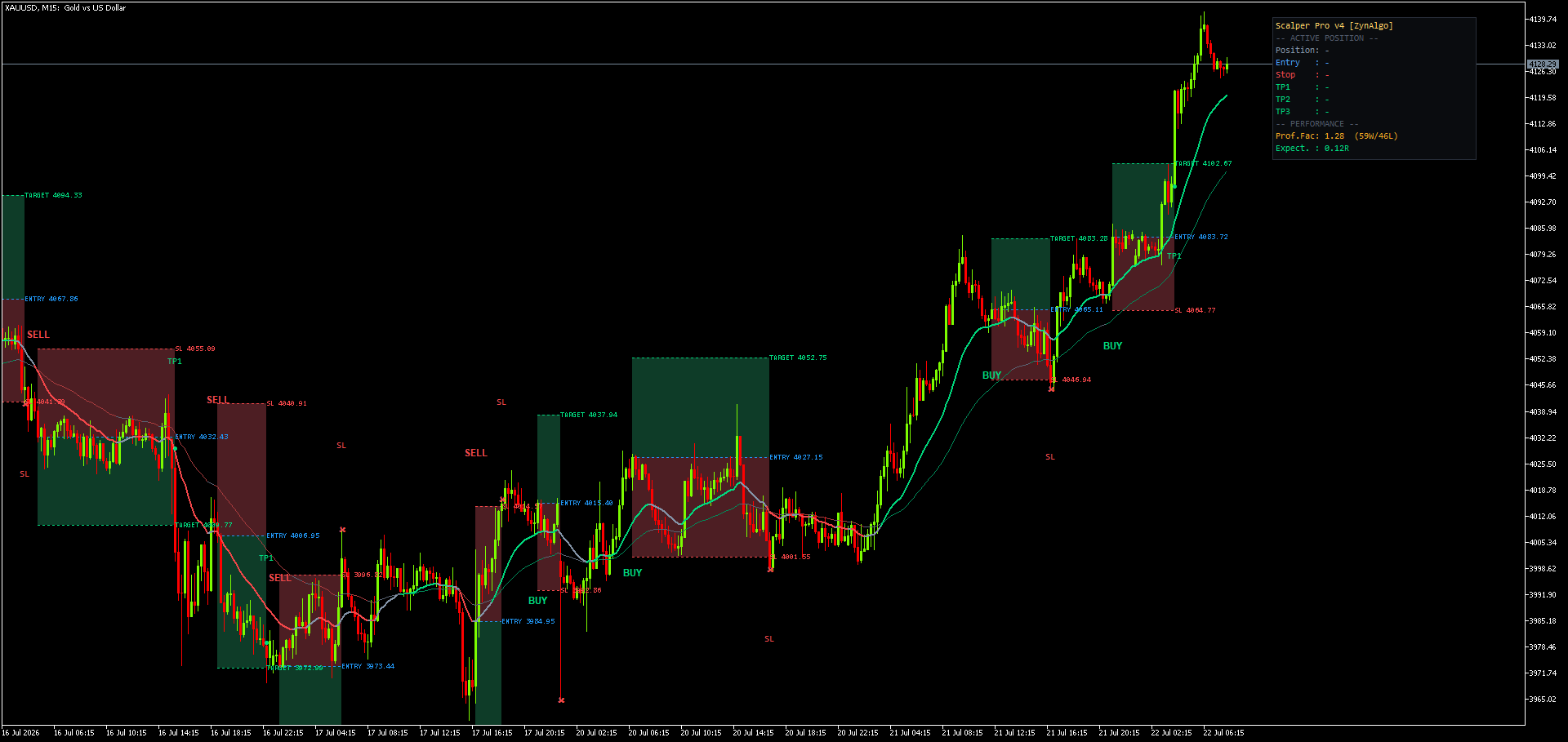
Why Your Scalping Entries Get Stopped Out Before the Move Starts
Taking every clean pattern on a five-minute chart burns capital on entries that never had momentum, volume or trend behind them. This article shows you how gated signal scoring filters scalps to those worth the spread.
Why Most Scalping Entries Look Right But Behave Badly on Five-Minute Charts
You see the pattern form, the entry looks clean, then the spread and the stop hunt kill it. Scalper Pro v4 holds signals back until structure, trend, momentum and volume agree, and scores every setup before it is drawn.
Why My Scalp Entries Get Stopped Out Early and How to Filter Setups Better
You see the pattern, you take the trade, and ten bars later you're stopped for a loss while price reverses without you. The problem is not the pattern, it's taking it without context.
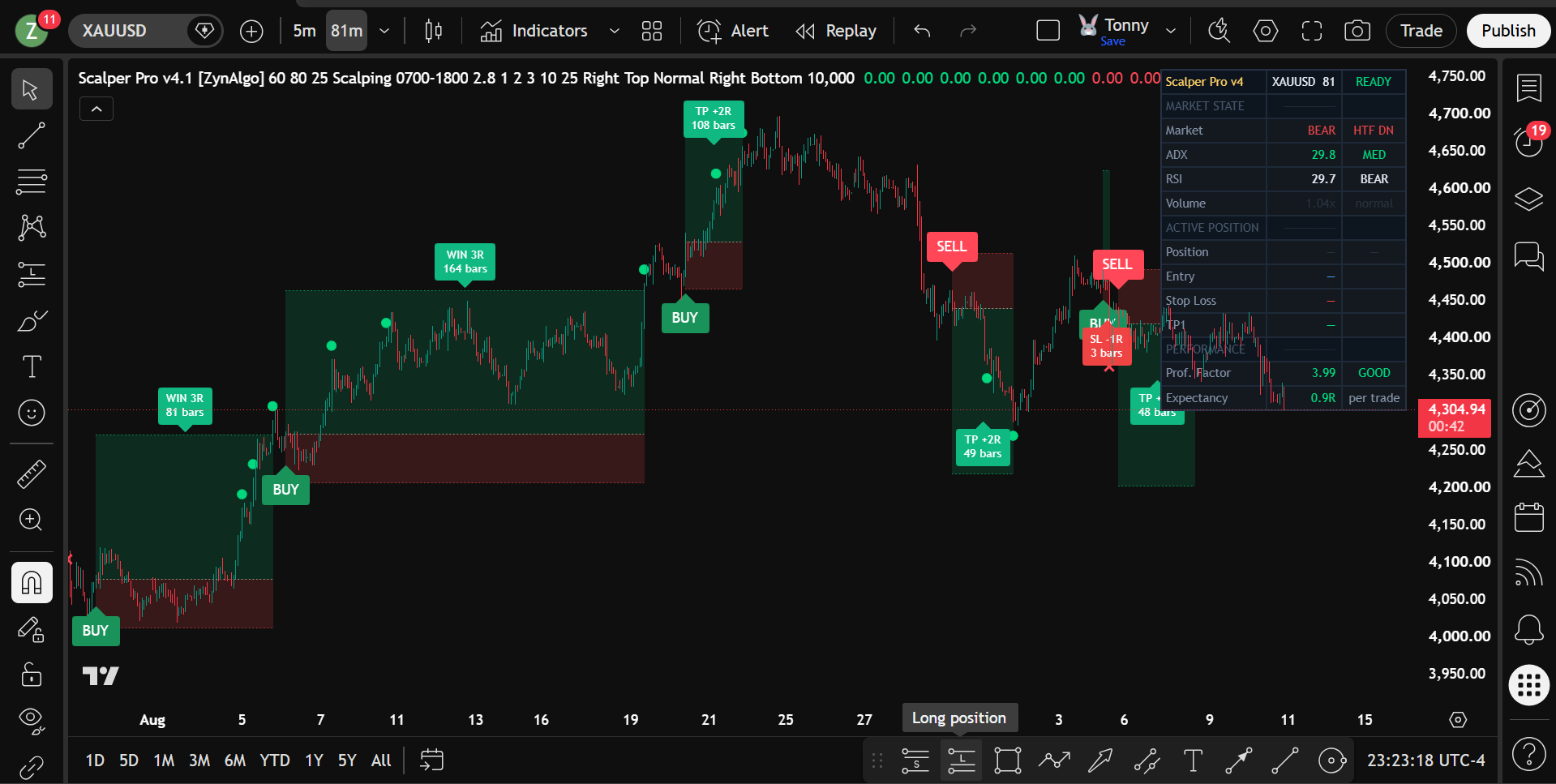
Why My Scalp Entries Get Stopped Out Early (And How to Filter Better)
Most scalping losses happen before momentum arrives, you enter a clean pattern that the broader context doesn't support. Learn how multi-factor filtering cuts noise and waits for confluence.